Getting started with Market Tracker
Your first session in Market Tracker: sign in, find a carrier by name or USDOT, open its file, save a filter as a view, and export the result to CSV.
Sign in at /login/ and you land on Carriers. From there, a first session is four steps: find a carrier, open its file, save the filter set you used, and export the result. This page walks all four.
#Before you start
You need a seat on a team with an active subscription. Without one, every tab still appears in the nav, but opening it shows the subscribe screen instead of data: no data is loaded at all. See Plans, seats and what's included.
#1. Find a carrier
The search box at the top of Carriers takes three things:
- a company name (partial is fine)
- a USDOT number
- an MC number
Suggestions appear as you type. Picking one opens that carrier's file directly.
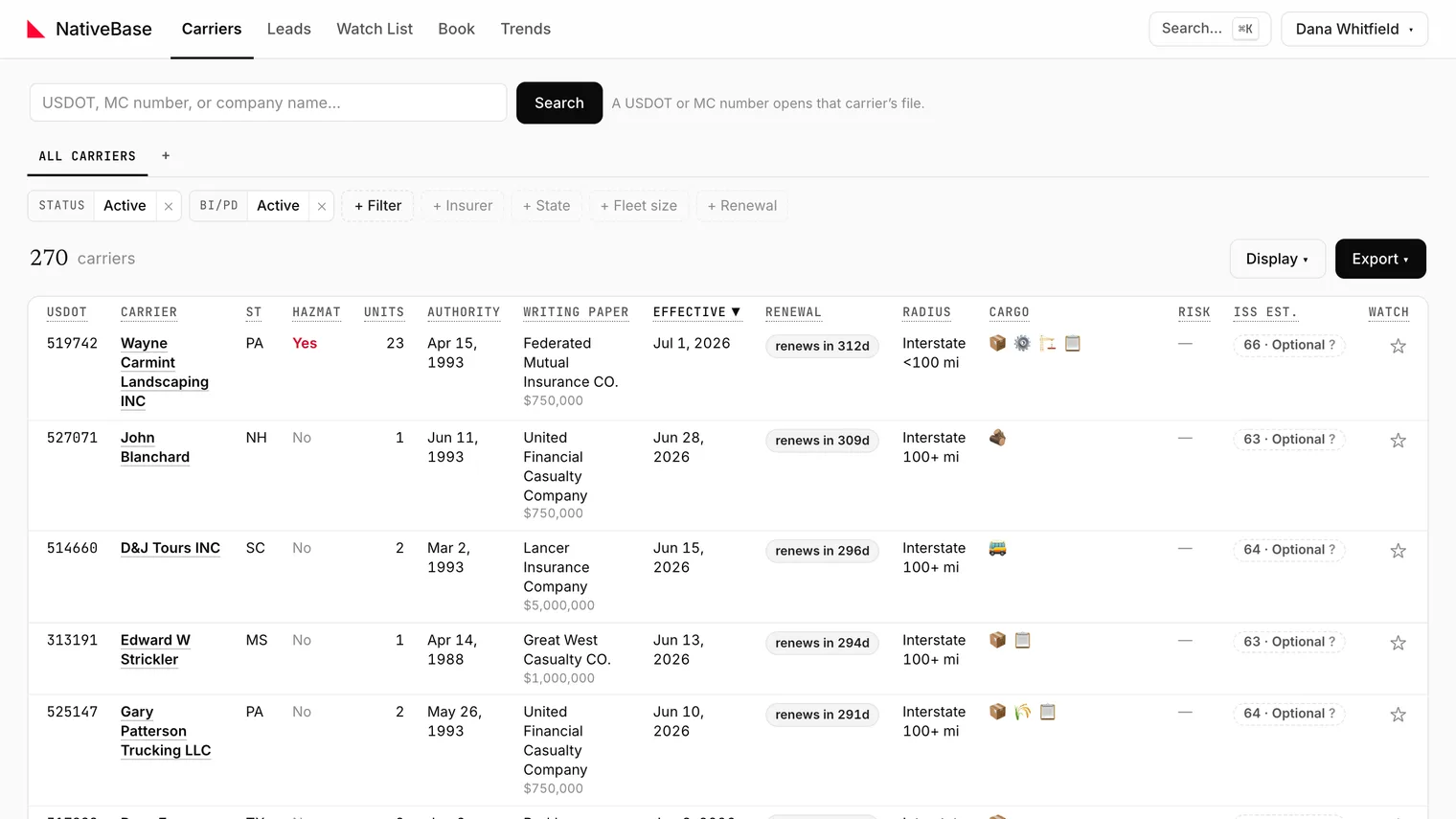
#2. Open the Carrier File
Clicking a row's USDOT opens the Carrier File: twelve tabs covering identity, authority, insurance history, safety, crashes, inspections, equipment and cargo. Clicking anywhere else on the row opens the peek drawer instead, which is a summary you can dismiss without losing your place in the grid.
Full detail: The Carrier File.
#3. Narrow the list
Above the grid is a row of filters: Insurer, State, Fleet size, Renewal and eleven more. Applying them updates the count immediately.
The grid opens on All carriers, which is active carriers with a BI/PD filing on file, plus carriers whose USDOT reads inactive only because the biennial MCS-150 update is overdue (labelled Inactive USDOT · MCS-150 overdue). That is a filter, not the whole census: clearing it widens the set considerably.
Every filter is documented in the Carriers filter reference.
Note
If the grid says No carriers match these filters., use the Reset filters button in the empty state rather than clearing filters one at a time.
#4. Save it, or export it
Two things to do with a filter set you like:
- Save it as a view. Name it and it becomes a tab. Optionally have Market Tracker email you new matches daily or weekly. See Saved views and email alerts.
- Export it. Export ▾ offers CSV and Excel. See Exporting to CSV and Excel for the row caps and the hourly limit.
#Moving around faster
Press ⌘K (Ctrl+K on Windows) anywhere in the app to open the command palette. It searches carriers by name or USDOT, plus your saved views and the app's own pages.
Last reviewed